
SoFi QuickBooks Integration: How to Import Statement Data Cleanly and Reconcile Faster
A practical guide to using SoFi statement data in QuickBooks with cleaner imports, fewer formatting problems, and a better review process before reconciliation.
A SoFi QuickBooks integration workflow should be simple: get the statement, turn it into clean rows, import it, and move on. In reality, many teams still spend too much time on the middle part. The PDF arrives, the transactions need to be extracted, and then someone has to clean the data enough for QuickBooks to accept it. That means date fixes, amount corrections, header cleanup, and endless checking to make sure the file will not break during import. What should have been a short bookkeeping step becomes another spreadsheet chore.
The better approach is to create a repeatable statement conversion workflow before QuickBooks ever enters the picture. Convert the SoFi statement into clean structured data first. Review the export. Then map it into the QuickBooks format your team uses. That is where Parse My Statement helps. It gives the team a clean starting point so the bookkeeping process becomes more about validation and less about file repair.
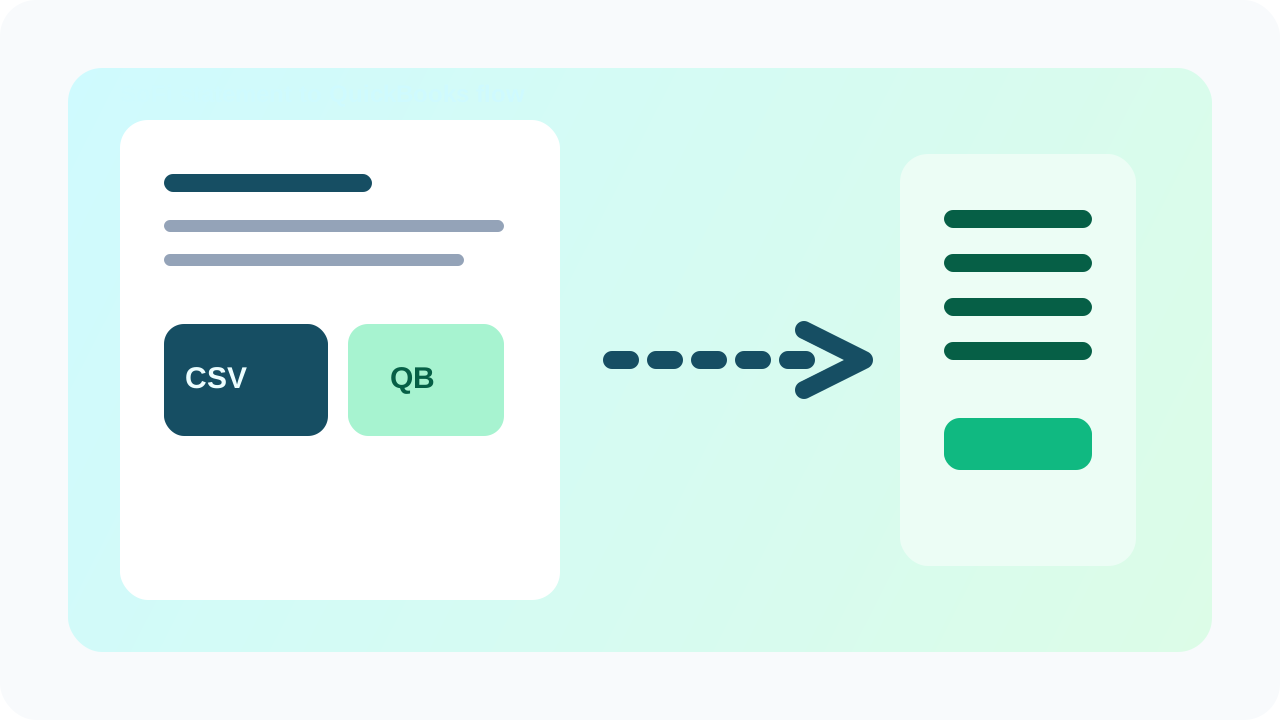
A strong QuickBooks workflow starts with a clean statement export. Once the rows are structured correctly, import prep gets much easier. You can pair this with the broader QuickBooks guide for template-specific prep.
What users actually need from a SoFi QuickBooks workflow
End users rarely care whether a blog post uses the word integration in a technical sense. What they care about is whether the process saves them time and avoids errors. They want to know if QuickBooks will accept the file, whether they can review the data before import, and whether the numbers will still reconcile to the original statement. A useful article should answer those questions directly instead of talking abstractly about bookkeeping automation.
- Can I get the SoFi statement into a clean CSV quickly?
- Can I check the data before importing it into QuickBooks?
- Will the import create more work later during reconciliation?
- Can I repeat the same process every month without custom spreadsheet work?
Those are the right questions because they focus on the actual workflow. A SoFi QuickBooks integration is only useful if it reduces manual effort, keeps the data trustworthy, and gives the bookkeeper a clear path from statement PDF to imported transactions.
The easiest clean workflow from SoFi statement to QuickBooks
- Download the original SoFi statement PDF and keep it unchanged.
- Convert the statement into structured data with Parse My Statement.
- Review dates, descriptions, amounts, and transaction count before export.
- Export the file as CSV for import or Excel for internal review.
- Map the export into the QuickBooks import template your team uses.
- Run a small test import before posting the full period.
This process works because it avoids mixing cleanup and bookkeeping in the same step. If the file is already clean when it reaches QuickBooks, the bookkeeper can focus on matching, categorization, and reconciliation. If the file is messy, the bookkeeper becomes a data repair technician instead. That is the difference between a workflow that scales and one that quietly drains time every month.
CSV or Excel before QuickBooks import?
For most QuickBooks workflows, CSV is the best default because it is the simplest handoff format. It keeps the file structure predictable and avoids workbook-specific quirks. Excel is still extremely useful when you want a reviewer to add notes, run formulas, or inspect unusual transactions before import. Many teams should not choose between them. They should generate both from the same source statement and use each where it fits best.
| Format | Use case | Why it helps |
|---|---|---|
| CSV | QuickBooks import preparation | Simple structure that works well for template mapping. |
| Excel | Human review and exception checks | Easier to annotate, filter, and investigate before import. |
| JSON | Custom workflows outside QuickBooks | Useful when another system handles enrichment first. |
What usually causes QuickBooks imports to fail
QuickBooks import problems usually come from structure, not from the bank statement itself. Dates may be inconsistent, amounts may appear as text, descriptions may combine badly, or the file may contain rows that are not actual transactions. These issues are frustrating because they often appear after the file already looks usable. That is why a solid review step matters. It catches the kind of mistakes that are easy to miss but expensive to clean up later.
- One transaction should appear on one row only.
- There should be no blank spacer rows or repeated headers inside the file.
- Amounts should import as numbers, not text values with formatting noise.
- Dates should match the QuickBooks template your team uses.
- Descriptions should remain readable enough for matching and categorization.
The good news is that these checks are straightforward once the statement conversion layer is stable. You do not need a complex process. You need a repeatable one. Review the same fields every month and most avoidable import errors disappear before the bookkeeping team wastes time on them.
How to validate the SoFi export before import
Validation is the part many teams skip when they are rushing. That is also why they keep getting burned. A two-minute review can prevent a half-hour import failure or a much longer reconciliation problem. The checks should be short enough that the team will actually do them every time, but specific enough to catch the errors that matter.
- Compare statement opening and closing balances with the source PDF.
- Review a sample of payments, refunds, fees, and deposits.
- Make sure the number of rows is plausible for the statement period.
- Filter for blanks, zeros, duplicate rows, and malformed dates.
- Import a small sample first if the mapping template is new or recently changed.
Do not stop at successful import QuickBooks accepting the file does not prove the file is fully correct. The imported totals should still be checked against the original SoFi statement.
Why this matters for bookkeepers and small teams
In smaller companies, the same person often handles statement preparation, import, coding, and reconciliation. That makes bad inputs especially expensive because one bottleneck creates four kinds of work. If the statement export is poor, the bookkeeper loses time cleaning, then importing, then fixing the import, then reconciling suspicious results. A clean SoFi QuickBooks workflow is valuable precisely because it protects the time of the person doing the actual books.
This is also why a SoFi-specific guide matters. People searching for their exact statement source want reassurance that the workflow has been considered from their point of view. They do not want a generic article that says QuickBooks imports bank data. They want to know how to go from their SoFi statement to a usable file without repeating manual fixes every month.
How to build this into your bookkeeping process
The easiest setup is to create one internal checklist for all statement periods: download the PDF, convert the statement, validate the export, save the canonical CSV, and only then move into QuickBooks mapping and import. Once those steps are standard, another team member can run the same process without depending on undocumented spreadsheet knowledge. That is important for consistency, training, and reducing person-specific workarounds.
It also gives you a cleaner paper trail. When the original statement, parsed export, and import-ready file live together, you can retrace the process later without guessing which spreadsheet was the final version. That is useful for audits, handoffs, and month-end reviews.
What to look for when evaluating a tool
The right test is simple: does this workflow reduce the total amount of bookkeeping work after the statement is downloaded? If the answer is yes, then the tool is useful. If the file still needs heavy cleanup before QuickBooks can accept it, then the automation is incomplete. Look for clean exports, reviewability, support for CSV and Excel, and a process your team can repeat without rebuilding the file manually.
- Reliable structured export from statement PDFs.
- Easy review before QuickBooks import.
- Support for CSV and Excel workflows.
- Lower recurring cleanup effort.
- A more consistent import and reconciliation process month after month.
Try the SoFi statement import workflow
Why end users care about this topic
The person reading this page does not want a keyword explanation. They want less cleanup, fewer import surprises, and better confidence that the numbers in QuickBooks still match the statement. That is what a proper SoFi QuickBooks integration guide should deliver. It should make the workflow easier to understand, easier to repeat, and easier to trust.
If your current process still depends on copying rows out of a PDF and repairing them manually, the fastest improvement is to clean up the statement conversion step first. Once that part is reliable, the rest of the QuickBooks workflow gets lighter almost immediately.
FAQ
What is the easiest way to use SoFi statements in QuickBooks?
Convert the statement into a clean CSV or Excel export first, validate the rows, then map the file into your QuickBooks import template before posting the full data set.
Why do QuickBooks imports break after a PDF statement is converted?
The most common reasons are malformed dates, text-based amounts, non-transaction rows, or merged descriptions. A structured export plus a short review step usually fixes this problem.
Should bookkeepers keep both CSV and Excel exports?
Yes, often that is the best setup. CSV works well for imports, while Excel is useful for reviewing, annotating, and investigating unusual transactions before import.
Stop retyping bank statements
Convert PDF bank statements to clean CSV, Excel, or JSON in 30 seconds — no signup required to try.
Try ParseMyStatement FreeFAQ
What is the easiest way to use SoFi statements in QuickBooks?
Convert the statement into a clean CSV or Excel export first, validate the rows, then map the file into your QuickBooks import template before posting the full data set.
Why do QuickBooks imports break after a PDF statement is converted?
The most common reasons are malformed dates, text-based amounts, non-transaction rows, or merged descriptions. A structured export plus a short review step usually fixes this problem.
Should bookkeepers keep both CSV and Excel exports?
Yes, often that is the best setup. CSV works well for imports, while Excel is useful for reviewing, annotating, and investigating unusual transactions before import.