
Capital One NetSuite Integration: How to Import Statement Data Without Spreadsheet Cleanup
Learn how to move Capital One statement data into NetSuite using a clean, repeatable workflow that reduces manual cleanup, import failures, and reconciliation risk.
When people search for a Capital One NetSuite integration, they usually are not looking for theory. They are trying to solve a very practical problem: a Capital One statement is sitting in PDF format, the finance team needs the transactions inside NetSuite, and the current process is too manual. Someone downloads the statement, opens Excel, copy-pastes rows, fixes dates, flips debit and credit signs, removes summary lines, and hopes the import works. That is slow, brittle, and difficult to repeat month after month.
A better workflow is to separate statement extraction from ERP import. First, you turn the Capital One statement into clean structured data. Then you validate it. Then you map it into the NetSuite format your team already uses. That is the job Parse My Statement is designed to support. Instead of treating every month-end statement like a cleanup project, you create a repeatable pipeline that gives your finance team consistent data for reconciliation, reporting, and review.
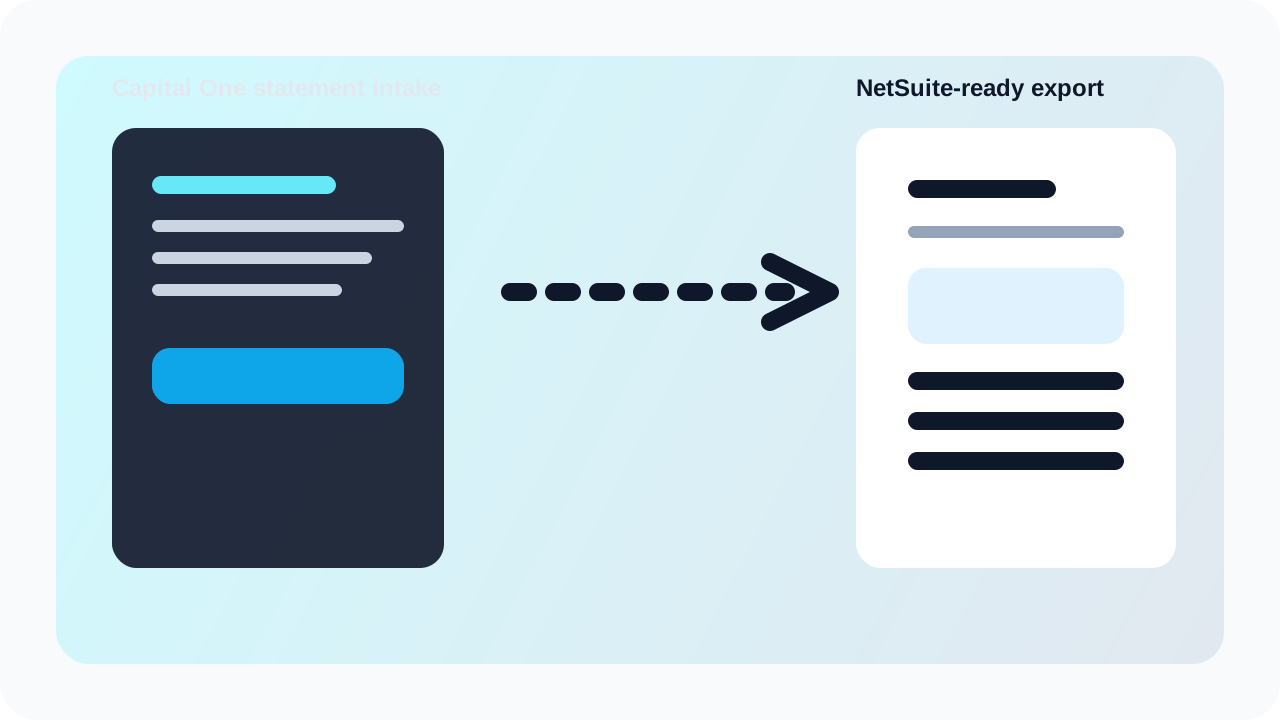
The goal is not just to extract transactions from a PDF. The goal is to produce a structured file your team can validate and import with confidence. If you want to test that workflow, start from the product page or the tools hub.
What a Capital One to NetSuite workflow should actually do
A good Capital One NetSuite workflow does not stop at reading the PDF. It has to produce usable accounting data. That means dates should be machine-readable, descriptions should stay intact, amounts should remain numeric, and the file should be easy to review before it ever reaches NetSuite. If the output still needs half an hour of manual repair, then the workflow is not actually solving the finance problem. It is just moving the cleanup one step later.
- Extract every transaction row from the Capital One statement.
- Normalize dates into a consistent format NetSuite can accept.
- Keep transaction descriptions readable enough for review and coding.
- Preserve amount values correctly so inflows and outflows are not flipped.
- Remove non-transaction rows such as balances carried forward, summaries, and page artifacts.
- Give the team a clean export they can test before final import.
That sounds obvious, but it is where many workflows break. Teams assume the hard part is getting data out of the PDF. In reality, the hard part is getting data out in a format that downstream systems and reviewers can trust. If your statement export still contains formatting noise, the controller does not care that it came from automation. It is still another file that needs rescue work before the close can move forward.
The simplest practical process from Capital One statement to NetSuite
- Download the original Capital One PDF statement and keep it unchanged as the audit source file.
- Upload the statement into Parse My Statement and extract the transactions into CSV, Excel, or JSON.
- Review the parsed rows for dates, descriptions, signs, balances, and transaction count.
- Export the cleaned file in the format that best fits your internal review step.
- Map the canonical export into the NetSuite import template your finance team already uses.
- Run a sample import and compare imported totals with the original Capital One statement before full posting.
This layered approach matters because it keeps the original extraction reusable. If your team wants a CSV for NetSuite today and an Excel workbook for review tomorrow, you can generate both from the same structured result. That is far better than re-parsing the PDF or maintaining separate manual versions in different spreadsheets. It also makes troubleshooting easier. If an issue appears at import time, you can quickly tell whether the problem came from statement extraction or from the NetSuite mapping step.
CSV or Excel for Capital One statement imports?
Most teams should think of CSV and Excel as serving different jobs. CSV is usually the safer format for system imports because it is simple, portable, and less likely to carry workbook quirks into the process. Excel is better when the finance team wants to annotate rows, build formulas, or run a quick review before import. In practice, many teams keep both: CSV for the import workflow and Excel for human review.
| Format | Best use | Why teams choose it |
|---|---|---|
| CSV | System import into NetSuite or another accounting workflow | Simple, portable, and easier to map consistently. |
| Excel | Internal review, annotations, pivoting, and spot checks | Better for humans who need to inspect and comment before import. |
| JSON | Custom finance ops or engineering workflows | Useful when transactions feed another process before NetSuite. |
The important point is not which one is universally better. It is whether the output stays clean and consistent across months. A team that has to rebuild headers, split description fields, and reformat dates every period is not running a scalable import workflow, regardless of file type.
What usually goes wrong before the NetSuite import
Most import failures are not dramatic. They come from small defects that pile up. A few dates get read as text. A summary line slips in between transactions. One debit is treated like a credit. A multiline description is collapsed into something unreadable. Each one looks minor, but together they create enough uncertainty that the finance team stops trusting the file. That leads to extra checks, delays in reconciliation, and eventually a return to manual spreadsheet cleanup because people feel safer fixing the file by hand.
| Issue | What it causes | Best check |
|---|---|---|
| Dates imported as text | Sorting and import problems | Open the export and confirm dates behave like true date fields. |
| Debit and credit sign errors | Cash flow reversal and bad reconciliation | Spot check known inflows and outflows against the original statement. |
| Summary rows mixed into transactions | Rejected imports or wrong totals | Filter the file and remove non-transaction rows before mapping. |
| Broken descriptions | Harder coding and review | Review a sample set of rows where memo fields are long or multiline. |
Validation checks every finance team should run
No statement import process should skip validation, even when the file looks good. A clean-looking file can still contain subtle errors that only show up when totals do not reconcile. The safest workflow is to run a short, consistent QA checklist every time a statement is converted. This does not need to be a long audit procedure. It just needs to catch the mistakes that matter most before the data enters NetSuite.
- Compare opening and closing balances to the original Capital One statement.
- Check that the transaction count is plausible for the statement period.
- Review a sample of deposits, payments, fees, and transfers for sign accuracy.
- Filter for blank dates, blank amounts, or obviously malformed rows.
- Run a small test import before the full file is used in production.
Best operational habit Keep one canonical export per statement and store it alongside the original PDF. That makes rechecks, audits, and downstream remapping much easier than rebuilding the file from scratch later.
How this helps with reconciliation and month-end close
The real benefit of a Capital One NetSuite integration workflow is not just faster import. It is cleaner reconciliation later. When the input file is reliable, reviewers can focus on real exceptions instead of wondering whether the source data is broken. That shortens the close process because time is spent analyzing transactions instead of repairing them. It also improves confidence across the team. Analysts, controllers, and bookkeepers can work from the same structured output rather than passing around slightly different spreadsheet versions.
This becomes even more valuable over time. A one-off cleanup task is annoying. A monthly cleanup task becomes a permanent tax on the finance team. The sooner you standardize the workflow from Capital One PDF to NetSuite-ready file, the sooner that tax starts disappearing from every close cycle.
What to include on the page if you are evaluating a solution
If you are choosing a statement conversion tool for this workflow, do not evaluate it only on whether it can read the PDF. Evaluate it on whether the resulting file is actually ready for use. Ask whether it handles native PDFs and scanned statements, whether the output keeps structured columns intact, whether reviewers can inspect the result easily, and whether the workflow supports the formats your team already uses. Those practical questions matter much more than broad marketing claims about automation.
- Can the tool extract transactions consistently across different statement layouts?
- Can the team validate the result before import?
- Does it support CSV and Excel exports for different downstream needs?
- Can the workflow be repeated by another team member without special spreadsheet knowledge?
- Will the output reduce work for NetSuite imports, not just move the work elsewhere?
See the Capital One statement conversion workflow
How to build a repeatable process inside your team
A good article should not stop at describing the file conversion. It should help the reader operationalize it. The simplest internal setup is to assign one person to statement intake, one canonical export format for all periods, and one short validation checklist before the NetSuite mapping step. Once that is documented, the process becomes durable. It no longer depends on the one analyst who remembers which spreadsheet tricks fixed the last import.
That is why this workflow is useful even if you are not dealing with huge statement volume. The value is not only speed. It is repeatability, audit traceability, and lower risk at the point where statement data enters the ERP. If your team is trying to cut spreadsheet dependency and make statement imports more reliable, that is the real reason to care about a Capital One NetSuite integration workflow.
FAQ
What is the safest way to use Capital One statements in NetSuite?
The safest approach is to extract the PDF into a clean structured file first, validate balances and amount signs against the original statement, and only then map it into the NetSuite import format your team uses.
Should I use CSV or Excel for a Capital One NetSuite workflow?
Use CSV when the next step is a system import. Use Excel when the team needs a human review layer with annotations or formulas. Many teams generate both from the same parsed statement.
Why do Capital One statement imports fail even after conversion?
The most common reasons are inconsistent date fields, bad debit-credit signs, summary rows left in the file, or damaged descriptions. A short validation checklist before import usually catches these issues.
Stop retyping bank statements
Convert PDF bank statements to clean CSV, Excel, or JSON in 30 seconds — no signup required to try.
Try ParseMyStatement FreeFAQ
What is the safest way to use Capital One statements in NetSuite?
The safest approach is to extract the PDF into a clean structured file first, validate balances and amount signs against the original statement, and only then map it into the NetSuite import format your team uses.
Should I use CSV or Excel for a Capital One NetSuite workflow?
Use CSV when the next step is a system import. Use Excel when the team needs a human review layer with annotations or formulas. Many teams generate both from the same parsed statement.
Why do Capital One statement imports fail even after conversion?
The most common reasons are inconsistent date fields, bad debit-credit signs, summary rows left in the file, or damaged descriptions. A short validation checklist before import usually catches these issues.