
How to Use Bank Statement Data for Vendor Payment Reconciliation: A Complete Guide for Small Businesses
Learn how to use bank statement data to automate vendor payment reconciliation. A practical step-by-step guide for small businesses to match payments to invoices faster.
How to Use Bank Statement Data for Vendor Payment Reconciliation: A Complete Guide for Small Businesses
If you run a small business, you know the pain of vendor payment reconciliation. You receive an invoice from a supplier, you issue a payment, and then you need to confirm that the payment actually cleared your bank account and matched the original invoice. When you're juggling dozens of vendors across multiple bank accounts, this process can eat up hours every month.
The good news is that your bank statement data holds the key to automating most of this work. By extracting structured transaction data from your bank statements, you can match payments to invoices in minutes instead of manually flipping through PDFs.
This guide covers exactly how to do that — from extracting the data to building a reconciliation workflow that saves you hours every month.
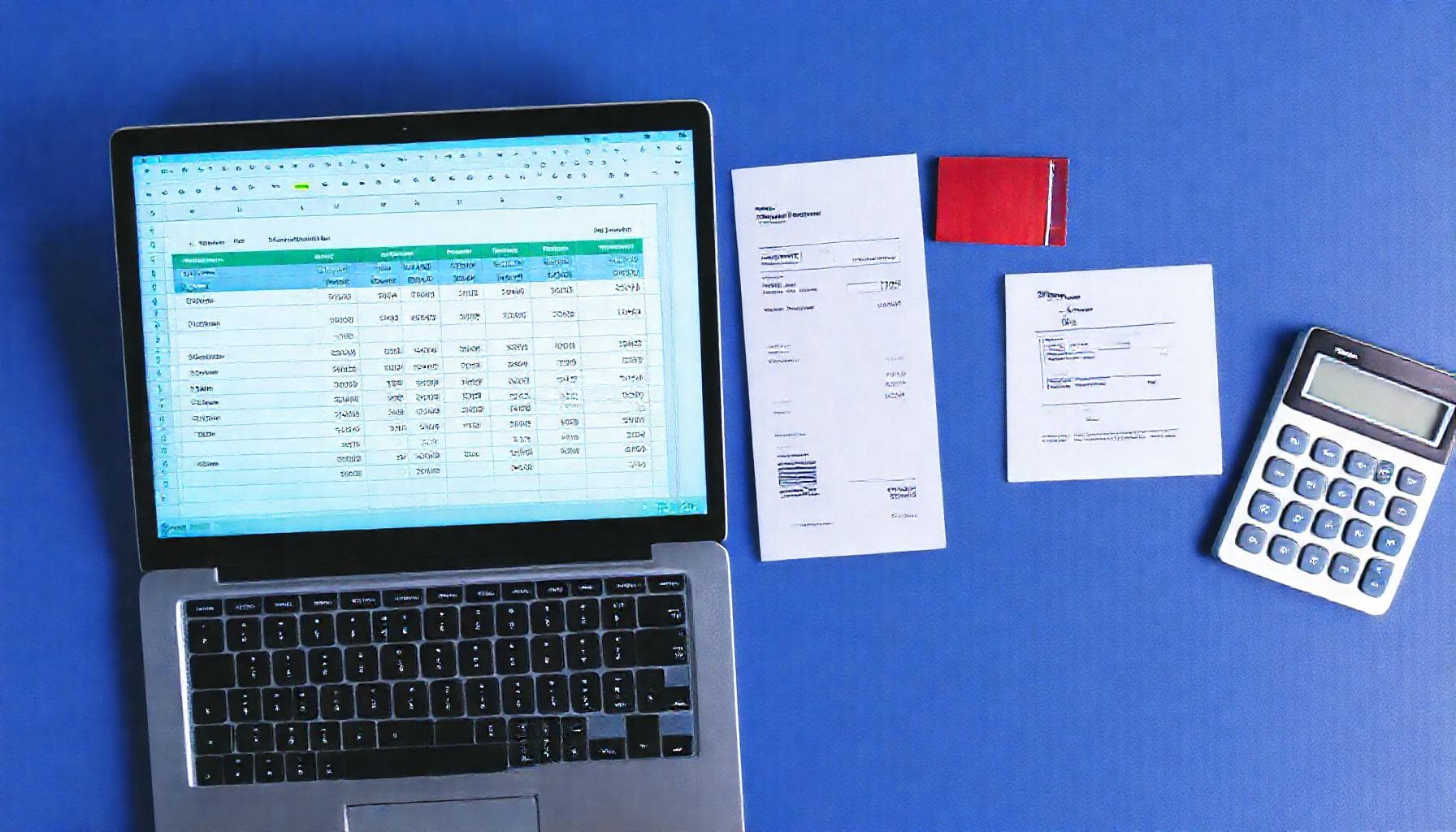
What is vendor payment reconciliation?
Vendor payment reconciliation is the process of matching outgoing payments in your bank account against the invoices or bills they were meant to cover. For every payment that leaves your account, you need to confirm:
- The correct vendor received the payment
- The amount matches the invoice
- The payment was processed on time
- No duplicate payments were made
- Any discounts, fees, or adjustments are accounted for
When you have 10, 50, or 200 vendors, doing this manually by reading PDF bank statements is a recipe for errors and missed discrepancies.
Why manual reconciliation fails
Most small businesses still reconcile vendor payments the hard way: open the bank statement PDF, open the invoice folder, and manually check each row. Here is why that breaks down:
- Volume: Even 50 transactions per month means 50 manual lookups. At 5 minutes each, that is over 4 hours of tedious work.
- Description mismatches: Your bank might show "PAYPAL *SUPPLIERCO" while the invoice says "Supplier Co. - Invoice #4821". Matching these by eye is error-prone.
- Timing differences: A payment initiated on the 30th might not clear until the 2nd of next month, making it look like a missing payment.
- Duplicate payments: When you have multiple invoices from the same vendor, it is easy to pay the same one twice and not catch it until reconciliation.
- Bank fees and adjustments: Wire fees, currency conversion charges, and bank adjustments can throw off exact amount matching.
The smarter approach: extract, match, reconcile
Instead of reading PDF bank statements and manually checking invoices, here is a workflow that turns the process into a data-matching exercise.
Step 1: Extract structured data from your bank statement
The first step is to get your bank statement data out of the PDF and into a format you can work with. Use a bank statement extraction tool like ParseMyStatement to convert your PDF into CSV or Excel with clean columns: date, description, amount, and balance.
Step 2: Prepare your invoice register
Your invoice register should include:
- Invoice number
- Vendor name
- Invoice date
- Invoice amount
- Payment date (when you sent the payment)
- Payment method (ACH, wire, check, credit card)
Export this from your accounting software or billing system as a CSV.
Step 3: Match payments to invoices
With both data sets in CSV format, you can use spreadsheet formulas to match them. The key matching criteria are:
- Amount match: The payment amount should equal the invoice amount (or be within a tolerance for fees).
- Date proximity: The bank debit date should be close to the payment date you recorded.
- Description match: The payee name on the bank statement should match the vendor name.
Use XLOOKUP or INDEX-MATCH in Excel to find matching rows. For date proximity, use a helper column that checks if the bank debit date falls within a window around the payment date.
Here is a practical formula for matching payments to invoices with a 3-day tolerance:
=XLOOKUP(1, (ABS(bankData[amount] - invoiceAmount) < 0.5) * (ABS(bankData[date] - paymentDate) < 3), bankData[date], "No match", 0)
This checks both amount (within $0.50) and date (within 3 days) simultaneously, which cuts false positives significantly.
Handling common exceptions
Every reconciliation round will produce some unmatched transactions. Here is how to handle the most common ones:
| Issue | Likely Cause | Solution |
|---|---|---|
| Amount differs by a few dollars | Bank fee or processing charge | Add a tolerance column (e.g., ABS(amount1 - amount2) < 5) |
| Payment not in bank statement | Payment still processing | Flag as pending and check next statement |
| Duplicate amounts | Two different invoices for same amount | Match by date proximity and vendor name |
| Missing description | Generic bank entry (e.g., "ACH DEBIT") | Cross-reference by amount and date only |
Step 4: Flag and investigate unmatched items
After running your matching formula, you will have three groups:
- Matched: Payment found in both bank statement and invoice register. These are done.
- Unmatched in bank statement: You recorded a payment but it has not appeared in the bank yet. These are typically checks that have not been cashed or ACH payments still in transit.
- Unmatched in invoice register: A debit on the bank statement that does not correspond to any recorded invoice. These need investigation — they could be unauthorized charges, bank fees, or payments you forgot to record.
For unmatched items, create a review list and investigate each one before closing the period.
When to automate further
If you are processing more than 50 vendor payments per month, the spreadsheet approach still requires manual effort. Consider:
- Accounting software integration: Export your bank statement CSV directly into QuickBooks, Xero, or FreshBooks and use their built-in reconciliation tools.
- Regular expressions for vendor mapping: Build a lookup table that maps common bank description variations to standardized vendor names.
- API-based extraction: For high-volume workflows, programmatic extraction via JSON output feeds directly into custom reconciliation pipelines. ParseMyStatement supports JSON export for this exact use case.
Building a monthly reconciliation workflow
Here is a repeatable monthly process that takes under 30 minutes once you have it set up:
- Day 1 of new month: Download your bank statement PDF from the previous month.
- Day 1 (5 min): Extract the PDF to CSV using your extraction tool.
- Day 1 (5 min): Export your invoice register from your accounting software.
- Day 1 (10 min): Run the matching formulas and flag exceptions.
- Day 1 (5 min): Investigate unmatched items and resolve discrepancies.
- Day 1 (5 min): Save the reconciliation workbook and file it with the original PDF.
Total: 30 minutes. Compare that to 2-4 hours of manual reconciliation, and the time savings add up fast.
A note on accuracy
Extraction tools are not perfect, especially with scanned or low-quality PDFs. Always spot-check a sample of the extracted rows against the original PDF before trusting the full reconciliation. Focus on:
- Opening and closing balances line up between the PDF and extracted data.
- Transaction counts match within a reasonable margin.
- Randomly selected rows have correct dates, descriptions, and amounts.
A five-minute verification saves hours of troubleshooting later.
Cross-product tip
If you need to create professional reports or documentation based on your reconciliation results, consider using an AI writing assistant like Typill to draft summaries of discrepancies, vendor communications, or reconciliation notes. It saves time on the writing side while you focus on the numbers.
Vendor payment reconciliation does not have to be a manual slog. By extracting structured data from your bank statements first, you turn unreadable PDFs into sortable, searchable, matchable data sets. The process takes about 30 minutes per month the first time, and under 10 minutes once you have a template and workflow in place.
If you need a reliable way to extract bank statement data from PDFs — whether from a business checking account or a corporate account — ParseMyStatement handles the extraction step so you can focus on the reconciliation itself.
Stop retyping bank statements
Convert PDF bank statements to clean CSV, Excel, or JSON in 30 seconds — no signup required to try.
Try ParseMyStatement FreeFAQ